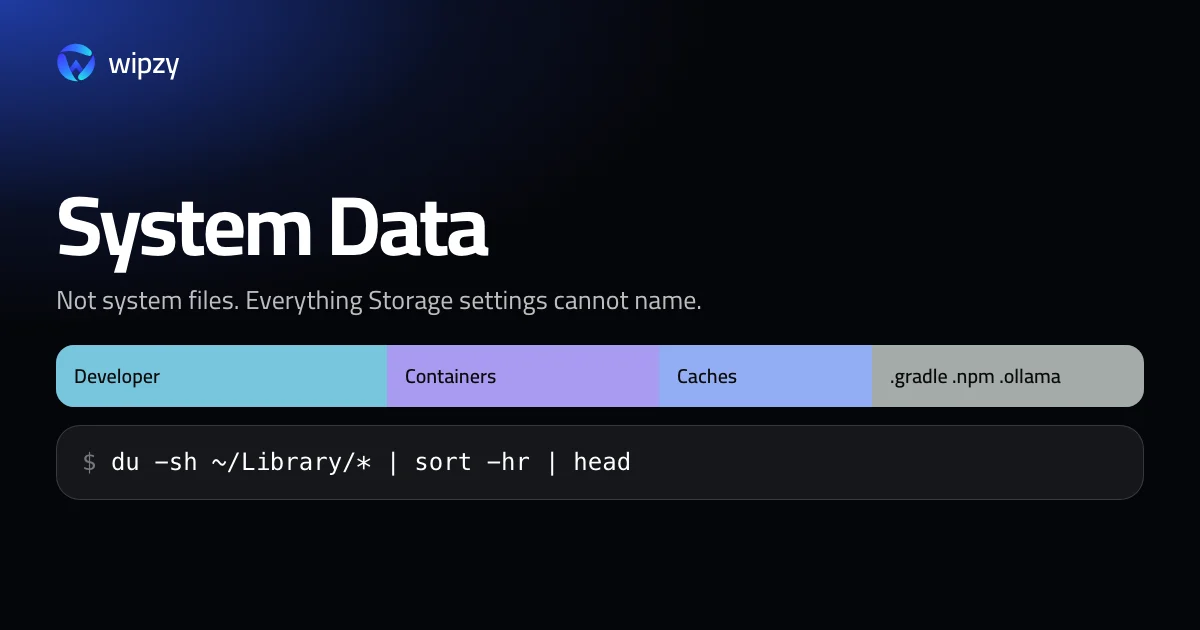
System Data is not system files. It is the name Storage settings gives to everything it cannot sort into Applications, Documents, Photos or another named group. On a developer's Mac that leftover group is often the largest bar, because developer tools write to places Storage settings does not look into.
You cannot delete "System Data". You can open it up. Two commands show what yours is made of:
du -sh ~/Library/* 2>/dev/null | sort -hr | head -15
du -sh ~/.[!.]* 2>/dev/null | sort -hr | head -15
The first lists the largest folders in your Library. The second lists hidden folders in your home, the ones whose names start with a dot. Both only read.
Reading the first list: ~/Library
| Folder | Usually holds | What to do |
|---|---|---|
Developer |
Xcode DerivedData, simulators, device support | DerivedData, simulators, the rest of Xcode |
Containers |
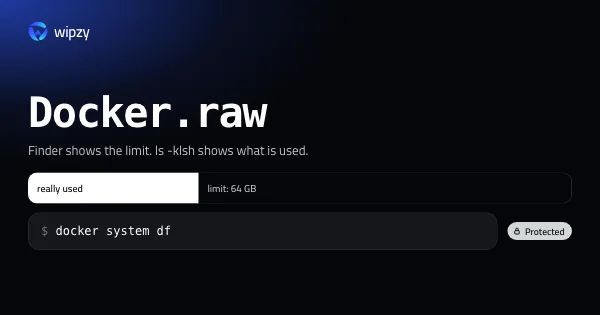
Data of sandboxed apps. With Docker Desktop, its whole disk image | Docker.raw. Do not delete folders here by hand |
Caches |
App caches and many developer caches | App caches, per app |
Application Support |
App data, mixed with caches of Electron apps | Per app, cache folders only |
Group Containers |
Shared data of app families, such as Office or chat apps | Leave alone |
Android |
The Android SDK and its system images | Android SDK and emulators |
Reading the second list: hidden folders
These never appear in Finder, which is how they grow unnoticed:
| Folder | Whose it is | Guide |
|---|---|---|
.npm, .bun, .yarn |
JavaScript package caches | npm, pnpm, Yarn and Bun |
.gradle, .android, .m2 |
Gradle, emulators, Maven | Gradle and Android |
.cargo, .rustup |
Rust downloads and toolchains | Cargo and rustup |
.ollama, .cache |
AI models, plus pip, uv and Hugging Face caches | Ollama and Hugging Face |
.nvm, .pyenv |
Installed Node and Python versions | Remove old versions with the tool itself |
.docker, .colima, .orbstack |
Container tools | Use the tool's own commands |
Between the two lists you will usually find three or four folders that explain most of the bar.
Local snapshots
One part of System Data is not a folder. If Time Machine is on, macOS keeps local snapshots of the disk, so that you can restore a file even when the backup disk is away.
tmutil listlocalsnapshots /
Each line is one snapshot. macOS removes them by itself, after about a day and sooner when space runs short, so they are rarely the real problem. If an installer says there is no room although Finder shows free space, snapshots are the usual cause. You can ask macOS to give that space back now:
tmutil thinlocalsnapshots / 20000000000 4
The number is the amount to reclaim in bytes, here 20 GB, and 4 is the highest urgency. Your backups on the Time Machine disk are not affected. Only local copies are thinned.
Why Finder and df disagree
Finder's "available" figure includes purgeable space: caches and snapshots macOS will delete when something needs room. df -h counts only space that is free right now. Both are right. If a tool refuses to install with "not enough space" while Finder shows plenty, trust df:
df -h /System/Volumes/Data
What macOS handles itself
Some of System Data is truly the system's, and none of it needs your help:
- Swap and the sleep image in
/private/var/vm. A restart resets swap. - Temporary files in
/private/var/folders. A restart clears much of it. - System caches in
/Library/Cachesand/System/Library/Caches.
A restart is the one honest "one click" in this guide. On a Mac that has been up for weeks, it can return several gigabytes of swap and temporary files.
Logs
Logs are part of System Data too, and one of them can surprise you:
du -sh ~/Library/Logs/* 2>/dev/null | sort -hr | head -5
Most entries are a few megabytes. The exception on a developer's Mac is CoreSimulator, where every simulator writes its system log. After months of testing it can reach gigabytes. With Simulator closed, the folders inside it can be removed. They are recreated the next time a simulator boots.
DiagnosticReports in the same place holds crash reports. They are small, and worth keeping for a few weeks in case you need to look at a crash.
With Wipzy
Wipzy replaces the grey bar with rows. One scan reads your home folder, hidden folders included, and names what it finds, each with its size and one of four levels.
| Area | Finds | Plan |
|---|---|---|
| Projects | node_modules, vendor, target, build output, in every project |
Free |
| Dev caches | 74 cache rules: npm, pnpm, Composer, Homebrew, pip, Cargo, Gradle, DerivedData, AI models | Free |
| System | Old simulators and runtimes, device support, Android system images, logs older than 7 days | Pro |
| Apps | Browser and editor caches of closed apps, apps not opened for 90 days | Pro |
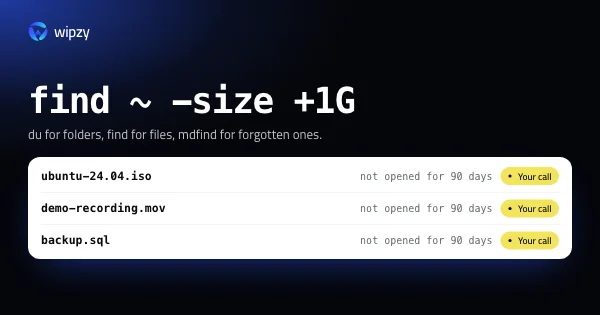
| Big files | Files of 500 MB or more not opened for 90 days, old installers | Pro |
What it leaves alone is part of the design. Wipzy never opens ~/Library/Containers, so the Docker disk image cannot be offered. Time Machine snapshots, swap and the Trash are not on any list. Source code, .env files and anything git tracks are Protected. Anything no rule recognises is Protected as well.
What it does offer is moved, not deleted. Clean puts the items into a quarantine on the same disk, History has Undo, and the space is freed when you press Free now. On an M4 Pro, the scan of a home folder with 43 projects takes 8.7 s.
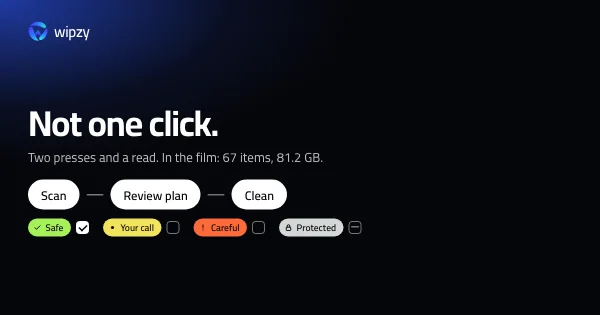
It is not one click: scan, Review plan, then Clean. See the four levels, the whole flow in 47 seconds, or what is free and what is Pro.
Questions
What is System Data on a Mac?
It is the category Storage settings uses for everything it cannot file under Applications, Documents, Photos and the other named groups. Caches, logs, app support files, virtual machine disks and local snapshots all land there.
Why is System Data so large on my Mac?
On a developer's Mac the usual causes are Xcode simulators and build data, the Docker disk image, package manager caches in hidden folders, and downloaded AI models. None of them is system software.
Can I delete System Data?
Not as a whole. It is not one thing. You find the large folders inside it, with the commands in this guide, and clear each one the way its tool intends.