Start with the one command that cannot hurt:
xcrun simctl delete unavailable
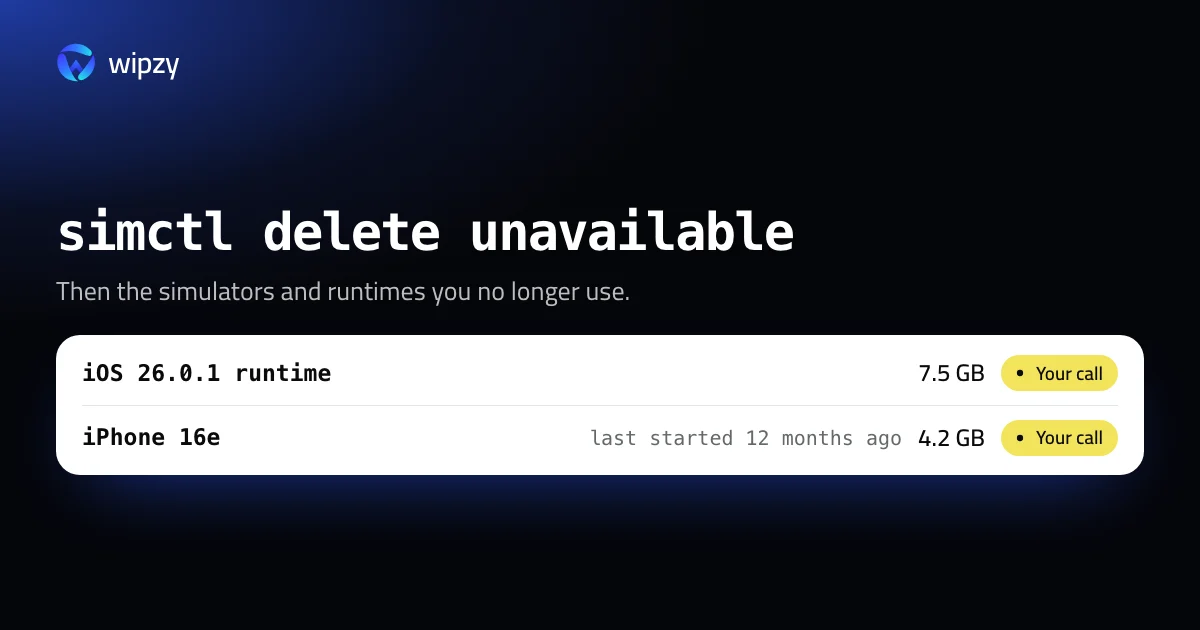
It removes simulators that your current Xcode can no longer boot, the leftovers of older Xcode versions and removed runtimes. After that, the space is in two places: simulators you no longer use, and whole runtimes you no longer target. This guide covers both.
What takes the space
| Thing | Where | Typical size |
|---|---|---|
| A simulator (device) | ~/Library/Developer/CoreSimulator/Devices/<UDID> |
Small when new, gigabytes once apps and data are inside |
| A runtime (an iOS version) | A disk image managed by Xcode, outside your home folder | About 7.5 GB for iOS 26.0.1 |
On the Mac Wipzy is developed on, two simulators that had not been started for a year held 6.4 GB between them, and the single installed iOS runtime is 7.5 GB.
List simulators and their sizes
xcrun simctl list devices
This prints every simulator grouped by runtime, with its UDID and state. The folders on disk are named by UDID, so size them and match the largest back to a name:
du -sh ~/Library/Developer/CoreSimulator/Devices/* | sort -hr | head -10
xcrun simctl list devices | grep 8F2C1D34
The second line takes the first characters of a folder name from the du output and shows which simulator that is. The identifiers in this guide are examples. Use the ones from your own list.
Delete simulators
Shut them down first, then delete by UDID:
xcrun simctl shutdown all
xcrun simctl delete 8F2C1D34-5A6B-4C7D-9E8F-0A1B2C3D4E5F
If you want to keep the device and only drop its contents, erase it instead:
xcrun simctl erase 8F2C1D34-5A6B-4C7D-9E8F-0A1B2C3D4E5F
There is also xcrun simctl delete all. It deletes every simulator on the Mac, including the ones you used this morning. It is rarely what you want.
List and delete runtimes
Runtimes are the larger win. Each iOS, watchOS, tvOS or visionOS version you ever downloaded is a disk image of several gigabytes.
xcrun simctl runtime list
The output ends with a total, for example Total Disk Images: 1 (7.5G). To see what a cleanup would remove without removing it, simctl has a dry run:
xcrun simctl runtime delete --notUsedSinceDays 90 --dry-run
Drop --dry-run to delete the runtimes that no simulator has used for 90 days. To delete one runtime, pass its identifier from the list:
xcrun simctl runtime delete 3E4F5A6B-7C8D-4E9F-A0B1-C2D3E4F5A6B7
The same can be done with the mouse: Xcode, Settings, Components. Select a platform and remove it.
Do not delete runtime files by hand. Xcode keeps them as signed disk images in a system folder and tracks them in a database. Removing files behind its back leaves entries that point at nothing.
What to keep
- The runtime your deployment target needs. If the app supports iOS 17, a simulator on iOS 17 is how you test that.
- Simulators with state you built up. A device with test data that took an hour to set up is worth more than its gigabytes.
- The newest runtime. Xcode asks for it again as soon as you press Run.
The simulator caches in ~/Library/Developer/CoreSimulator/Caches are a separate, safe item. They are rebuilt when a simulator boots. They and the other Xcode folders are in where Xcode's space goes. Build data is in how to delete DerivedData.
Afterwards: create only what you use
Xcode makes a full set of default simulators for every runtime you install, most of which you will never boot. After a cleanup, add back only the models you test on. In Xcode that is Window, Devices and Simulators, Simulators, then the plus button. From a terminal:
xcrun simctl list devicetypes | grep iPhone
xcrun simctl create "Test iPhone" "iPhone 17 Pro"
The first line lists the models your Xcode knows. The second creates one simulator of that model on the newest installed runtime that supports it. A new simulator takes almost no space until you boot it and install an app.
With Wipzy
Simulators are part of Wipzy's System area, which is in Pro. Wipzy asks Xcode's own simctl what exists, then lists:
| Row | Level | How it is cleaned |
|---|---|---|
| Simulators not started for 90 days or more | Your call | Runs simctl delete <UDID> for the ones you tick |
| Unavailable simulators | Your call | Runs simctl delete unavailable |
| Runtimes not used for 90 days or more | Your call | Runs simctl runtime delete <id>, only when simctl reports the runtime as deletable |
| Simulator caches | Safe | Moved to the quarantine, Undo in History |
Three things are deliberate:
- Booted simulators and simulators that were never started are not offered. The first is in use. The second holds nothing worth the row.
- Each row says when it was last started, so "iPhone 16e, last started 12 months ago, 4.2 GB" is a decision you can make in a second.
- A command cannot be undone, so those rows are never ticked for you. Simulators have to be removed by
simctl, or Xcode's device list would no longer match the disk. The plan sheet states that these items cannot be undone from History before you approve.
Nothing runs in one click. You scan, press Review plan, read the list, then Clean. See how the four risk levels work and what Pro covers.
Questions
What does xcrun simctl delete unavailable do?
It deletes simulators that the current Xcode cannot run any more, usually because their runtime was removed or belonged to an older Xcode. Simulators you can still boot are not touched.
Is it safe to delete all simulators?
The simulators themselves, yes. You can create them again in Xcode. What is lost for good is what was inside them, such as installed test builds, signed-in accounts and app data.
How do I get a deleted iOS runtime back?
Download it again in Xcode under Settings, Components, or run xcodebuild -downloadPlatform iOS. It is a download of several gigabytes.