Xcode itself is one app in /Applications. The space it uses is mostly elsewhere, in your Library. One command shows the whole picture:
du -sh ~/Library/Developer/Xcode/* ~/Library/Developer/CoreSimulator/* 2>/dev/null | sort -hr
Read the list from the top. The rest of this guide goes through the names you will see, largest first on most Macs, and says for each: what it is, whether it can go, and how it comes back.
The map
Folder under ~/Library/Developer |
What it holds | Can it go |
|---|---|---|
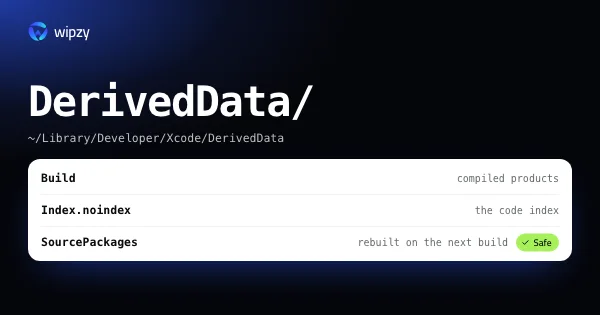
Xcode/DerivedData |
Build products and indexes | Yes, rebuilt on the next build |
CoreSimulator/Devices |
Simulators with their apps and data | Old ones, with care |
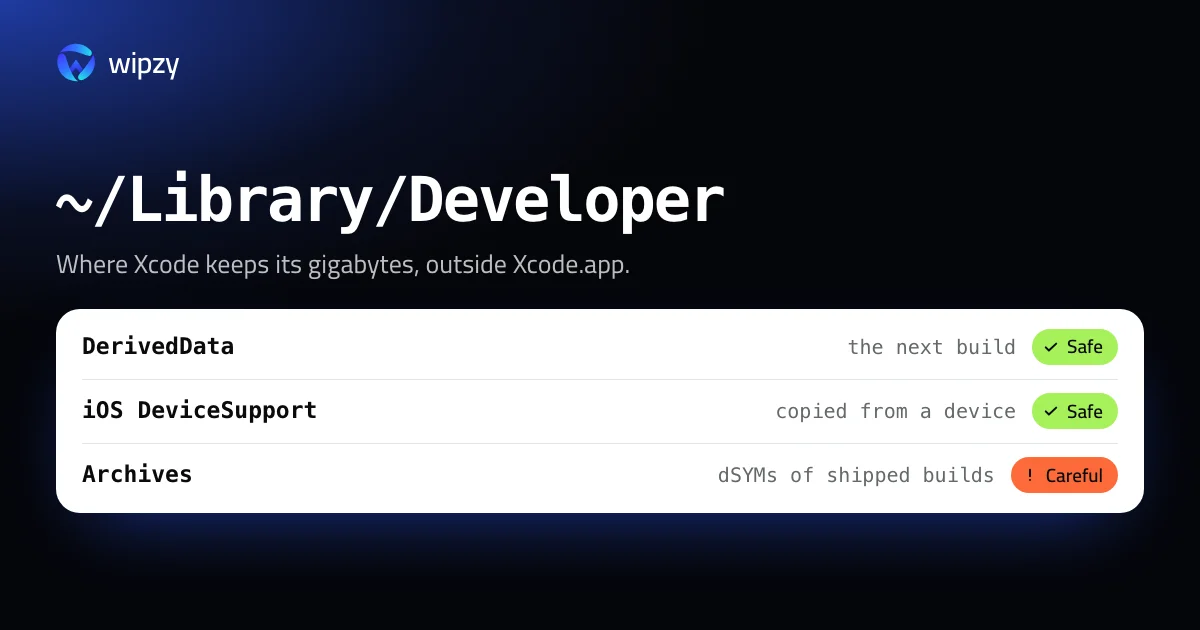
Xcode/iOS DeviceSupport |
Debug symbols per iOS version | Yes, copied again |
Xcode/Archives |
Builds you archived for release | Only ones you no longer need |
Xcode/UserData/Previews |
Simulators behind SwiftUI previews | Yes, recreated |
CoreSimulator/Caches |
Simulator system caches | Yes, rebuilt on boot |
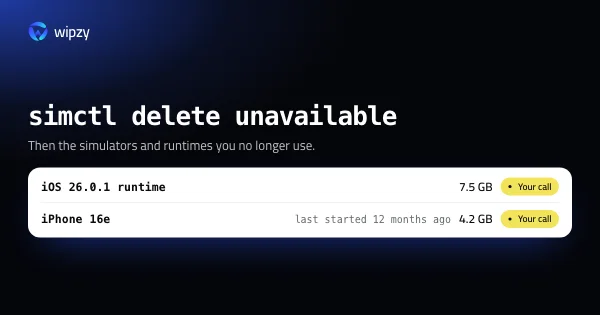
The first two have guides of their own: how to delete DerivedData and how to delete old simulators and runtimes. This guide covers the rest.
iOS DeviceSupport
The first time you plug in an iPhone on an iOS version Xcode has not seen, Xcode copies that version's system symbols from the phone, so the debugger can show readable frames. One folder per version stays behind for good:
du -sh ~/Library/Developer/Xcode/*DeviceSupport/* | sort -hr
The names look like iPhone17,1 26.0.1 (23A8464). There are sibling folders for watchOS, tvOS and visionOS. Every point update your test phones ever ran has left a few gigabytes here.
Delete the versions your devices no longer run:
rm -rf ~/Library/Developer/Xcode/iOS\ DeviceSupport/"iPhone15,2 17.5.1 (21F90)"
It is reasonable to keep the newest version, because that is the one your phone is most likely on today.
Archives
Every Product, Archive creates an .xcarchive in ~/Library/Developer/Xcode/Archives, sorted by date. An archive is not a cache. It holds the exact app you built and its dSYM files.
du -sh ~/Library/Developer/Xcode/Archives/* | sort -hr
The careful way is Xcode's own window: Window, Organizer, Archives. There you see each archive with its version and build number, which the folder names do not show.
Previews and simulator caches
SwiftUI previews run in their own simulators under Xcode/UserData/Previews. The folder grows with every project you preview.
du -sh ~/Library/Developer/Xcode/UserData/Previews ~/Library/Developer/CoreSimulator/Caches
Both are caches in the true sense. With Xcode and Simulator closed they can be removed. Previews are recreated when you open a preview, and the simulator caches are rebuilt when a simulator boots. The first preview and the first boot afterwards are slower.
Installers and old copies of Xcode
Three more places, outside ~/Library/Developer:
.xipfiles in Downloads. If you install Xcode from Apple's developer site, the downloaded archive stays in~/Downloadsafter you expand it. It is several gigabytes and you do not need it once Xcode runs.- Second copies of Xcode.
ls -d /Applications/Xcode*.appshows them. Check which one is active withxcode-select -pbefore you move another to the Trash. - iPhone software updates. Restore images end up in
~/Library/iTunes/iPhone Software Updatesas.ipswfiles. They are downloaded again when a device needs one.
Simulator logs and Interface Builder devices
Two smaller folders belong to the same family and are easy to miss:
du -sh ~/Library/Logs/CoreSimulator ~/Library/Developer/Xcode/UserData/"IB Support" 2>/dev/null
~/Library/Logs/CoreSimulatorholds the system log of every simulator, one folder per device. Months of test runs add up. With Simulator closed the folders can be removed, and each is recreated when its simulator boots.UserData/IB Supportholds the simulator devices that Interface Builder uses to render storyboards and XIB files. Xcode makes them again when you open such a file. If your projects are all SwiftUI, nothing uses them any more.
With Wipzy
Wipzy has a rule for most rows of the map. DerivedData is in the free plan under Dev caches. The others are in the System area, which is part of Pro.
| What | Level | How Wipzy treats it |
|---|---|---|
| Xcode DerivedData | Safe | One row, moved to the quarantine |
| iOS, watchOS, tvOS and visionOS DeviceSupport | Safe | One row per version. The newest version of each platform is kept and never offered |
| SwiftUI previews, simulator caches | Safe | Moved to the quarantine |
.ipsw software updates |
Safe | Moved to the quarantine |
| Xcode archives | Careful | One row per archive, never ticked. You type clean to include one |
| Installers in Downloads older than 7 days | Your call | Listed under Big files, after you include Downloads |
Archives are Careful for the reason above: they may be the only copy of a build's symbols. Wipzy shows them so you can see the size, and leaves the decision and the typing to you.
Everything in the table is moved, not deleted. Clean puts items into a quarantine on the same disk, History has Undo, and the space is freed when you press Free now. Second copies of Xcode in /Applications are not offered yet. That check is still by hand.
It is never one click: scan, Review plan, then Clean. See the four risk levels and what Pro adds.
Questions
Can I delete iOS DeviceSupport?
Yes. Each folder holds debug symbols copied from a device on one iOS version. Xcode copies them again, in a few minutes, the next time a device on that version connects.
Should I delete Xcode archives?
Only the ones you no longer need. An archive holds the dSYM files that turn crash reports of that exact build into readable stack traces. Keep the archives of versions that are still in users' hands.
Why is Xcode not listed as large in Storage settings?
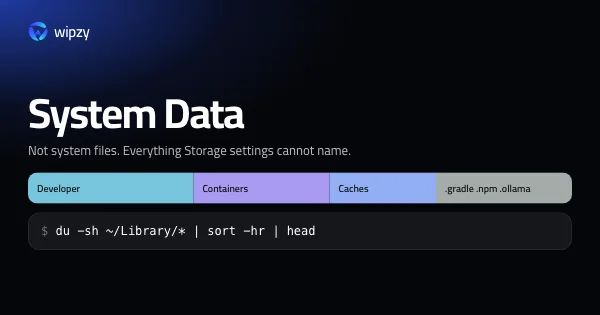
Because most of it is outside the app. The folders in ~/Library/Developer are counted under Developer or System Data, not under Xcode.