There is no single switch. Each app keeps its own cache, in one of three places. This command shows the largest ones:
du -sh ~/Library/Caches/* 2>/dev/null | sort -hr | head -20
Quit an app, delete the contents of its cache folder, and the app builds a new one the next time it runs. This guide covers where the caches are, how to clear the big ones properly, and which folders next to them hold things you want to keep.
Where app caches live
| Place | Who uses it |
|---|---|
~/Library/Caches/<name> |
Most Mac apps, and many developer tools |
~/Library/Containers/<bundle id>/Data/Library/Caches |
Sandboxed apps from the App Store |
~/Library/Application Support/<App>/Cache, Code Cache, GPUCache |
Apps built on Electron: Slack, Discord, VS Code, Notion, Figma |
Leave /Library/Caches and /System/Library/Caches alone. They belong to macOS, and it manages them.
Electron apps are why ~/Library/Caches does not tell the whole story. Check the second place too:
du -sh ~/Library/Application\ Support/*/Cache ~/Library/Application\ Support/*/Code\ Cache 2>/dev/null | sort -hr | head
Clear one app's cache
Quit the app first. Then remove what is inside its cache folder, for example for Spotify:
rm -rf ~/Library/Caches/com.spotify.client/*
Browsers
Browsers have the largest caches and their own menus for clearing them. The menu is the safest way, because the browser knows which files are cache and which are your profile.
| Browser | Where |
|---|---|
| Chrome, Edge, Brave, Arc | Settings, Privacy and security, Delete browsing data. Tick only "Cached images and files" |
| Safari | Develop menu, Empty Caches. Turn the menu on in Settings, Advanced |
| Firefox | Settings, Privacy & Security, Cookies and Site Data, Clear Data. Tick only "Cached Web Content" |
Leave "Cookies" unticked unless you want to be signed out everywhere.
Electron apps: cache next to data
For Slack, Discord, Teams, Notion and similar apps, the cache folders sit in the same folder as your data. Inside ~/Library/Application Support/Slack, for instance:
| Folder | What it is | Can it go |
|---|---|---|
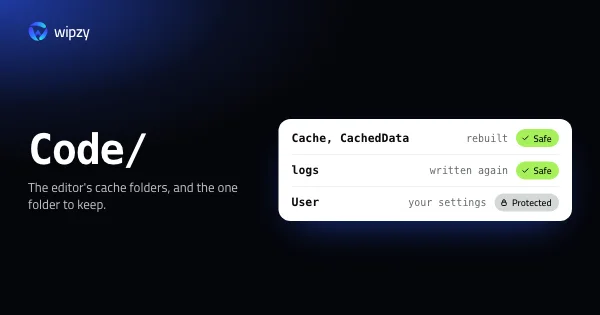
Cache, Code Cache, GPUCache |
Downloaded files and compiled code | Yes |
Service Worker/CacheStorage |
Offline copies | Yes, but the app reloads more |
Local Storage, IndexedDB, Cookies |
Your sign-in and local state | No |
Deleting the whole app folder to "clear the cache" signs you out and resets the app. Remove only the named cache folders.
Caches that are not cheap
Some folders in ~/Library/Caches belong to developer tools, and refilling them takes real time:
| Folder | What it is | Guide |
|---|---|---|
Homebrew |
Downloaded bottles | brew cleanup |
ms-playwright |
Test browsers, a few hundred megabytes each | Playwright and Puppeteer browsers |
pip, Yarn, go-build, CocoaPods |
Package and build caches | Use each tool's own command |
JetBrains |
IDE indexes, and the IDE's Local History | VS Code and JetBrains caches |
This is the reason not to empty the whole folder in one go. Half of it may be a morning of downloads.
What clearing caches does and does not do
It frees space now. It does not make the Mac faster. Caches exist to make apps faster, so a cleared cache means a slower next launch. And for apps you use daily, the space is back in the cache within days.
Clearing is worth it in three cases: the disk is full today, an app misbehaves and a fresh cache fixes it, or the cache belongs to an app you no longer use. For the third case, remove the app too.
macOS also clears some caches itself when the disk runs low. That is part of what Storage settings calls purgeable space, explained in what System Data is.
Sandboxed apps keep theirs elsewhere
Apps from the App Store, and Apple's own apps, run in a sandbox. Their caches are not in ~/Library/Caches but inside each app's container:
du -sh ~/Library/Containers/*/Data/Library/Caches 2>/dev/null | sort -hr | head -10
macOS may ask whether Terminal is allowed to access data from other apps. The command only reads sizes. If a container's cache is large, clear it the same way: quit the app, then remove what is inside that one Caches folder. Do not remove anything else in a container. The rest is the app's documents and settings.
With Wipzy
Wipzy's Apps area, part of Pro, does this app by app, from a list of folders it knows instead of a guess.
It has 28 app rules, each with an explicit list of cache folders:
- Browsers: Chrome, Edge, Brave, Arc, Vivaldi, Firefox
- Editors and developer tools: Visual Studio Code, Cursor, Windsurf, VSCodium, OpenCode, GitHub Desktop
- Work and chat: Slack, Discord, Teams (classic), Notion, Postman, Figma, Obsidian, Zoom, Signal
- Media and more: Spotify, Claude, ChatGPT, Adobe media cache and logs, After Effects disk cache, DaVinci Resolve cache
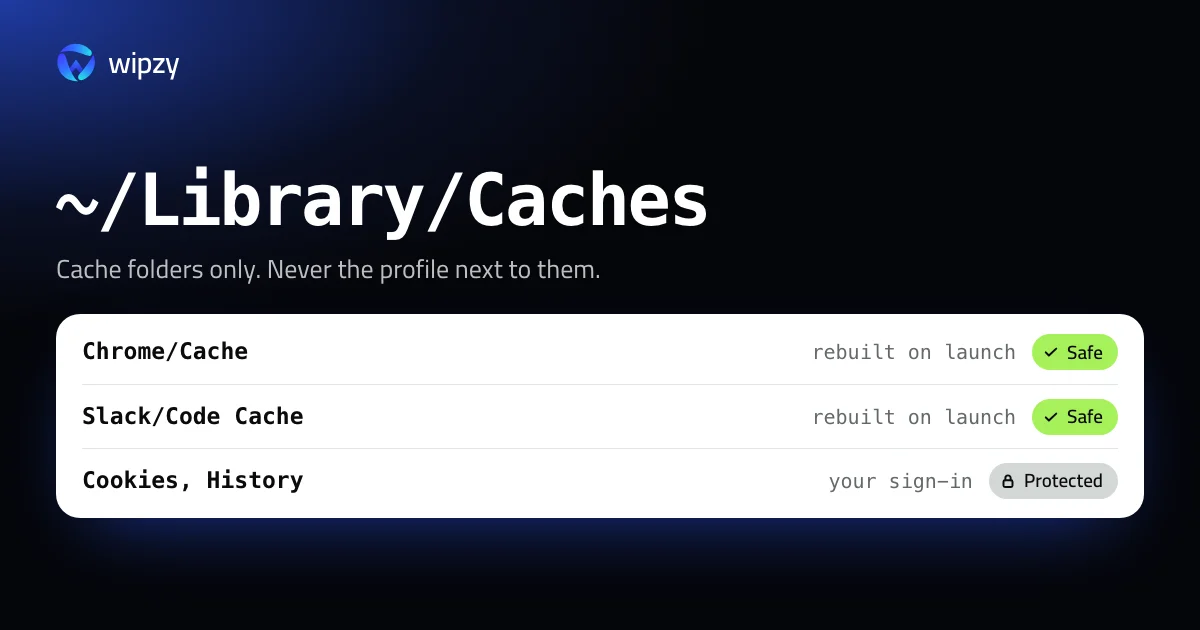
Cache folders only, never profile data. For a browser the row says: "Browser cache" and "History, passwords, cookies and extensions are kept". Anything not on an app's list is Protected.
| Item | Level |
|---|---|
Cache, Code Cache, GPUCache of a known app |
Safe |
Service Worker/CacheStorage |
Your call |
| Cookies, history, local storage, extensions | Protected |
Only when the app is closed. A running app is writing to its cache. Wipzy offers an app's cache once the app has quit.
Moved, not deleted. Clean puts the folders into a quarantine on the same disk. If an app behaves oddly afterwards, History has Undo. The space is freed when you press Free now.
The developer side of ~/Library/Caches, such as Homebrew, pip, Yarn, Go and CocoaPods, is in the Dev caches list, which is free.
It is never one click: scan, Review plan, then Clean. See the four risk levels and what Pro adds.
Questions
Is it safe to delete everything in ~/Library/Caches?
Mostly, with the apps closed, but it is a blunt tool. Apps rebuild what they need, yet some folders there are slow to refill, such as package manager downloads and test browsers. Clearing per app is safer and tells you what you gained.
Will clearing an app's cache sign me out?
Not if you remove only cache folders. Sign-in state is in cookies, local storage and keychains, which are separate. This guide lists the folders to leave alone.
Does the space stay free?
Only for apps you stopped using. An app you open every day fills its cache again within days. That is what a cache is for.