The honest answer is no. A tool that frees a meaningful amount of space with one click, without showing you the list first, is choosing for you which of your files are worth keeping. What does work takes about ten minutes and three steps: see where the space is, clear what your tools rebuild by themselves, and decide the rest with your own eyes.
This guide is that ten minutes, with the commands.
Step 1: see where the space is
Open the Apple menu, System Settings, General, Storage. The bar is a start. Terminal says more:
df -h /System/Volumes/Data
shows how full the disk really is. Then the largest folders in your home and in your Library:
du -sh ~/* 2>/dev/null | sort -hr | head -10
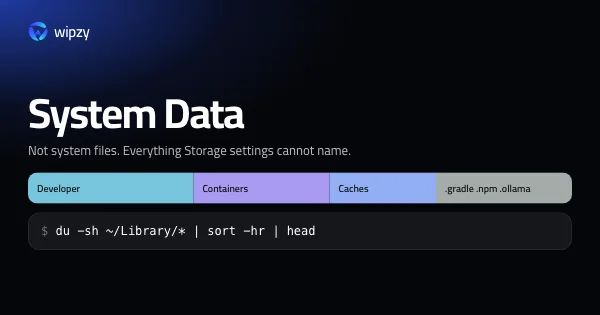
du -sh ~/Library/* 2>/dev/null | sort -hr | head -15
The first time, macOS asks whether Terminal may read Desktop, Documents and Downloads. Both commands only read. Nothing is changed.
The top five lines of the second command are your cleanup list. On a developer's Mac they are usually Developer, Containers, Caches and Application Support.
Step 2: clear what rebuilds itself
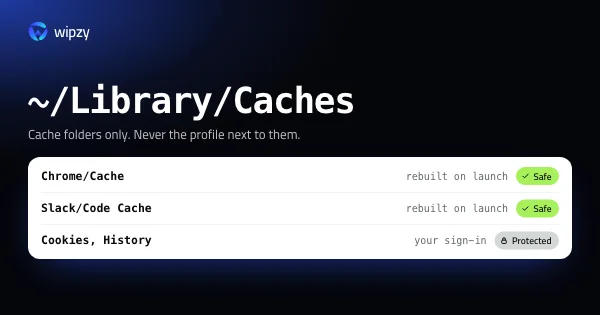
Everything in this table comes back by itself or with one command. Run the ones that match your top lines.
| What | Command | Comes back |
|---|---|---|
| Homebrew leftovers | brew cleanup |
Not needed again |
| Xcode build data | rm -rf ~/Library/Developer/Xcode/DerivedData/* |
On the next build |
| Simulators Xcode cannot run | xcrun simctl delete unavailable |
Not needed again |
| Docker build cache | docker builder prune |
On the next docker build |
| npm cache garbage | npm cache verify |
Not needed again |
node_modules in old projects |
See the guide | npm ci |
Each line has a guide with the checks to make first: Homebrew, DerivedData, simulators, Docker, npm and node_modules.
Then empty the Trash in Finder. Files in the Trash still take space until you do.
Step 3: decide the rest yourself
No rule can decide these for you, because only you know what they are:
- Downloads. Sort by size. Installers ending in
.dmgor.pkgfor apps that are already installed can go. - Large files you forgot. A screen recording from last year, a database dump, a virtual machine. See how to find large files.
- Apps you no longer open. In Finder, sort Applications by Date Last Opened.
- iPhone backups. Manage them in Finder with the phone connected, never by deleting folders.
What one click cleaners spend their click on
It helps to know what is behind the big button in a typical cleaner:
| Action | Worth it |
|---|---|
| Clearing app and browser caches | A little. The apps fill them again within days |
| Deleting logs | Rarely more than a few hundred megabytes |
| Removing "language files" from apps | No. It changes signed apps and can stop them from opening |
| "Freeing memory" | No. macOS manages memory itself. This frees no disk space |
| Removing duplicates automatically | Risky. Two equal files in two folders may both be wanted |
The number such a tool shows after its scan is mostly cache that would return anyway. The folders that hold real space on a developer's Mac, such as simulators, build output and container images, are not on its list at all.
What must never be on a cleanup list
- Anything in
/Systemor/Library - The Photos, Mail and Messages libraries
~/Library/Mobile Documents, which is iCloud Drive- Keychains and anything in
~/Library/Application Supportthat you cannot name - Source code,
.envfiles, anything your git repositories track
Do it again in three months
A cleanup is not a one-time fix, because the tools start writing again the same afternoon. What helps is a rhythm:
- Every quarter: steps 1 and 2. Ten minutes.
- After each macOS and Xcode update: old simulators, runtimes and device support files.
- When you shelve a project: its dependency and build folders, on the day you stop.
Keep the two du commands from step 1 in a note. The second time takes half as long, because you know what your top five lines mean.
With Wipzy
Wipzy is built on the idea of this guide: the finding and sorting can be automatic, the decision cannot.
The scan is the automatic part. It reads your whole home folder for projects, caches and leftovers. On an M4 Pro with 43 projects that takes 8.7 s. It knows 345 stacks and has 257 project rules, so it can tell a vendor folder that composer install rebuilds from a folder you made yourself.
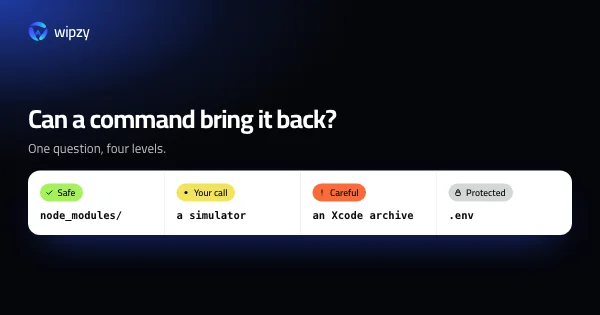
Everything it finds gets one of four levels.
- Safe comes back by itself or with one command. These are ticked for you.
- Your call comes back but costs time, such as a simulator. Listed, not ticked.
- Careful might hold your work. You type
cleanto include it. - Protected is never offered: source,
.env, anything git tracks, anything no rule recognises.
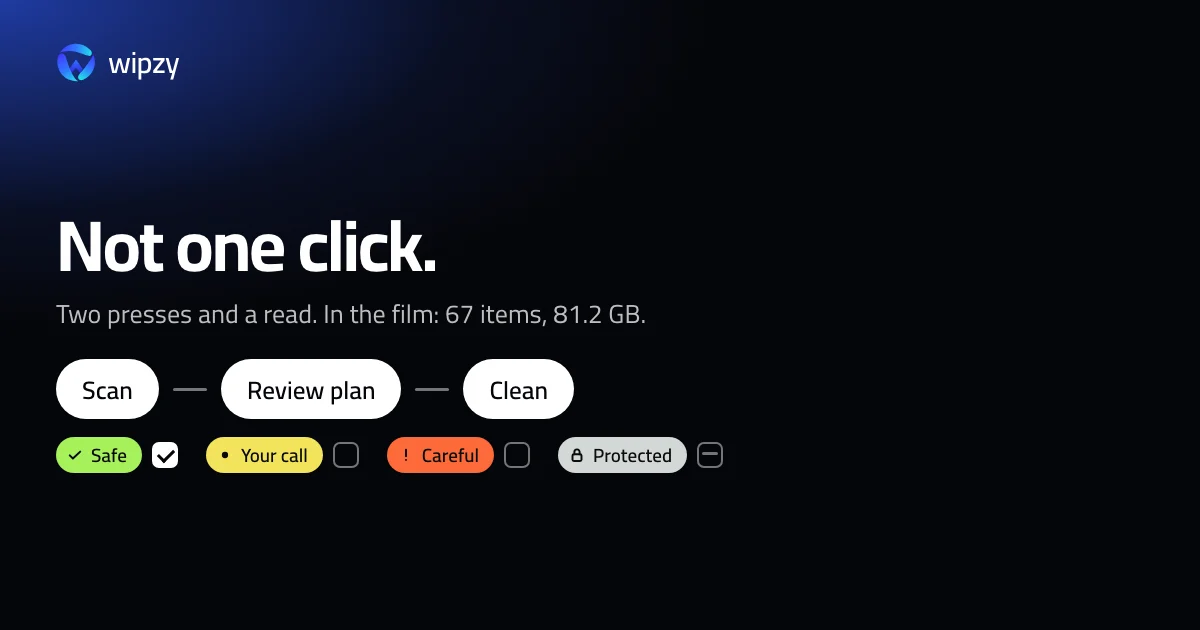
Then come two presses and a read, not one click. Review plan opens the list: every item, its path, its size and how it comes back. In the film on this site, recorded with sample data, that plan is 67 items and 81.2 GB. Clean then moves the items into a quarantine on the same disk. Nothing is deleted. If something was needed, History has Undo. The space is freed when you press Free now, or after the time you chose, with Pro.
Projects and Dev caches are free. System, Apps and Big files are in Pro. Wipzy runs on macOS 13 or later on Apple silicon, and the first public build is being notarized by Apple.
Watch the scan and the clean in 47 seconds, see the four levels, or check what is free.
Questions
Is there a one click cleaner built into macOS?
Not quite. Storage settings has recommendations, such as emptying the Trash automatically after 30 days and removing watched films. They help, but they do not look at caches, build folders or developer tools.
Are Mac cleaner apps safe?
Judge one by two things. Does it show every item, with its path and size, before anything is removed? And can you get an item back afterwards? If either answer is no, be careful with it.
How long does a full cleanup take by hand?
About ten minutes for the steps in this guide, plus the time the downloads take when a tool needs its files again.