docker system prune removes four things, and asks once before it does:
- all stopped containers
- all networks not used by at least one container
- all dangling images
- unused build cache
Two flags widen it. -a also removes every image that no container uses. --volumes also removes anonymous volumes that no container uses. This guide walks through each prune command from harmless to dangerous, so you can stop at the line where your data starts.
Look before you prune
There is no dry run. The closest thing is the disk report:
docker system df
It prints one line each for Images, Containers, Local Volumes and Build Cache, with a RECLAIMABLE column. For every image, container and volume by name:
docker system df -v
Read the volumes section of that output with care. A volume named shop_pgdata is a database.
The five prunes, mildest first
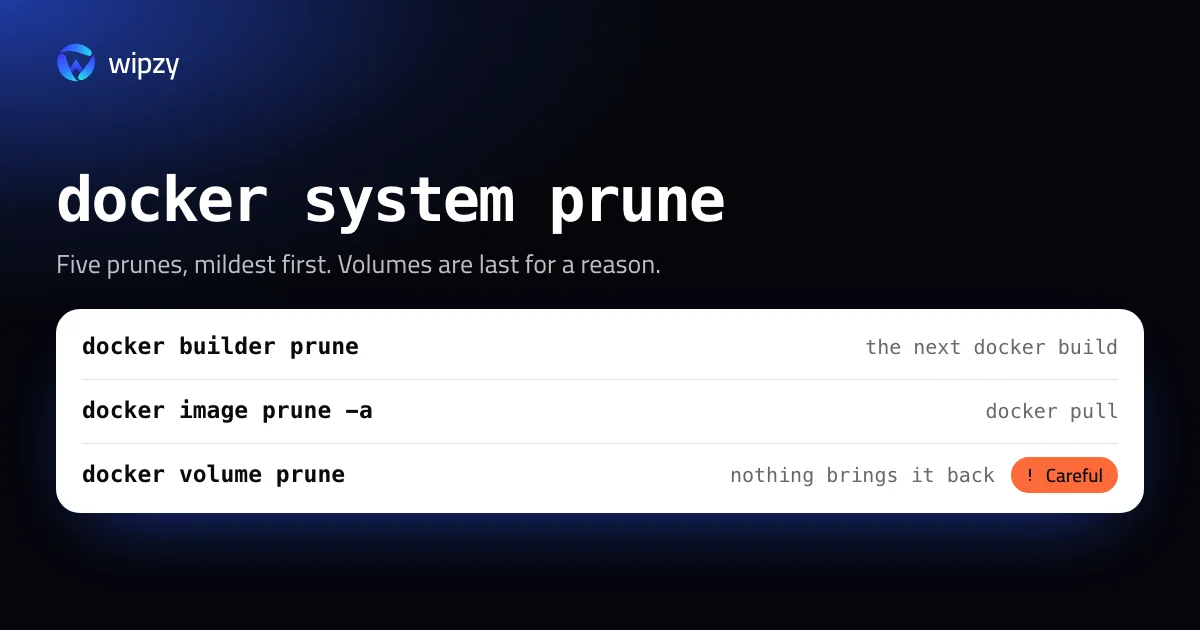
| Command | Removes | Comes back with |
|---|---|---|
docker builder prune |
Build cache no build is using | The next docker build, slower once |
docker image prune |
Dangling images: layers with no tag, left by rebuilds | Nothing needed |
docker container prune |
All stopped containers | docker compose up or docker run |
docker image prune -a |
Every image not used by a container | docker pull, or a build |
docker volume prune |
Anonymous volumes no container uses | Nothing. The data is gone |
docker system prune is the first three plus unused networks, in one command.
1. Build cache
docker builder prune
Every RUN and COPY step of every build leaves a cached layer. This is usually the largest reclaimable line and the cheapest to lose. To keep recent layers and drop old ones, add a filter:
docker builder prune --filter until=336h
until=336h removes cache entries older than 14 days.
2. Dangling images
docker image prune
When you rebuild shop:latest, the previous image loses its tag and stays on disk as <none>. Nothing refers to it any more. This prune is safe in every setup.
3. Stopped containers
docker container prune
A container you start with --rm or through Compose is normally disposable. A container you created by hand months ago and configured from a shell inside it may not be.
4. All unused images
docker image prune -a
This removes every image without a container, tagged or not. After a container prune, that can be nearly everything. Each image returns with a pull or a build, so the cost is bandwidth and time. If an image exists only on this machine, because you built it and never pushed it, make sure you still have the Dockerfile and its context.
5. Volumes
docker volume prune
removes anonymous volumes that no container uses. Since Docker 23 it leaves named volumes alone unless you add -a:
docker volume prune -a
Before any volume prune, list them and check what you recognise:
docker volume ls
The combined commands
| Command | Equal to |
|---|---|
docker system prune |
Steps 1, 2 and 3, plus unused networks |
docker system prune -a |
Steps 1 to 4 |
docker system prune -a --volumes |
Steps 1 to 4, plus anonymous volumes |
Each prints the list of what it will remove and waits for y. Adding -f skips the question. Leave -f out when you type the command yourself. The prompt is the only safety there is.
In Compose projects the same line exists: docker compose down keeps volumes, docker compose down -v deletes them.
After pruning on a Mac
Docker Desktop keeps everything in one disk image file, and that file does not always shrink the moment you prune. If Finder still shows a large Docker.raw, see how to check its real size and hand the space back.
With Wipzy
Wipzy offers exactly one of the five steps, the first one, and it does so through Docker's own command.
| Step | In Wipzy |
|---|---|
| Build cache older than 14 days | Row "Docker build cache", Your call. Runs docker builder prune --force --filter until=336h |
| Dangling images, stopped containers, unused images | Not offered yet |
| Volumes | Not offered. They may hold your data |
The reasons behind that table are the rules the whole app follows:
- Only what rebuilds. The build cache comes back with the next
docker build. The row shows the reclaimable size fromdocker system df, and it appears only while the Docker daemon answers. - Fixed commands. Wipzy runs the exact list of arguments above. It never builds a shell command from text.
- A command has no undo, so it is never ticked for you. Most of what Wipzy cleans is moved into a quarantine, and History can put it back. A prune cannot be put back. The row is Your call, and the plan sheet says "Can't be undone from History" before you approve.
The Docker row is in the System area, part of Pro. Scan, Review plan, then Clean: never one click.
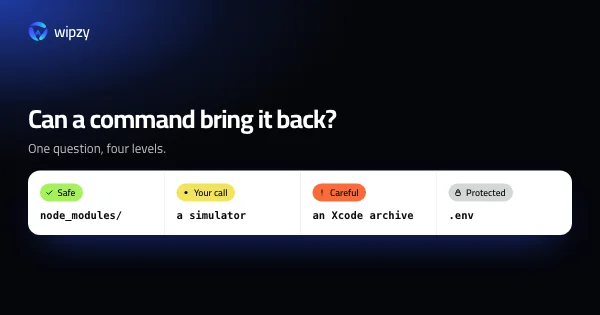
The idea that some deletes deserve an undo and some deserve a warning is the subject of rm -rf compared with a quarantine. The levels are explained in Four levels. Only one is ticked for you.
Questions
Does docker system prune delete volumes?
Not by default. With --volumes it deletes anonymous volumes that no container uses. Named volumes are removed only by docker volume prune -a or docker volume rm.
Is docker system prune safe?
The plain command removes stopped containers, unused networks, dangling images and unused build cache. All of that can be recreated, except files that a stopped container wrote outside a volume.
Is there a dry run for docker prune?
No. Use docker system df -v before to see what is reclaimable, and read the list in the confirmation prompt.