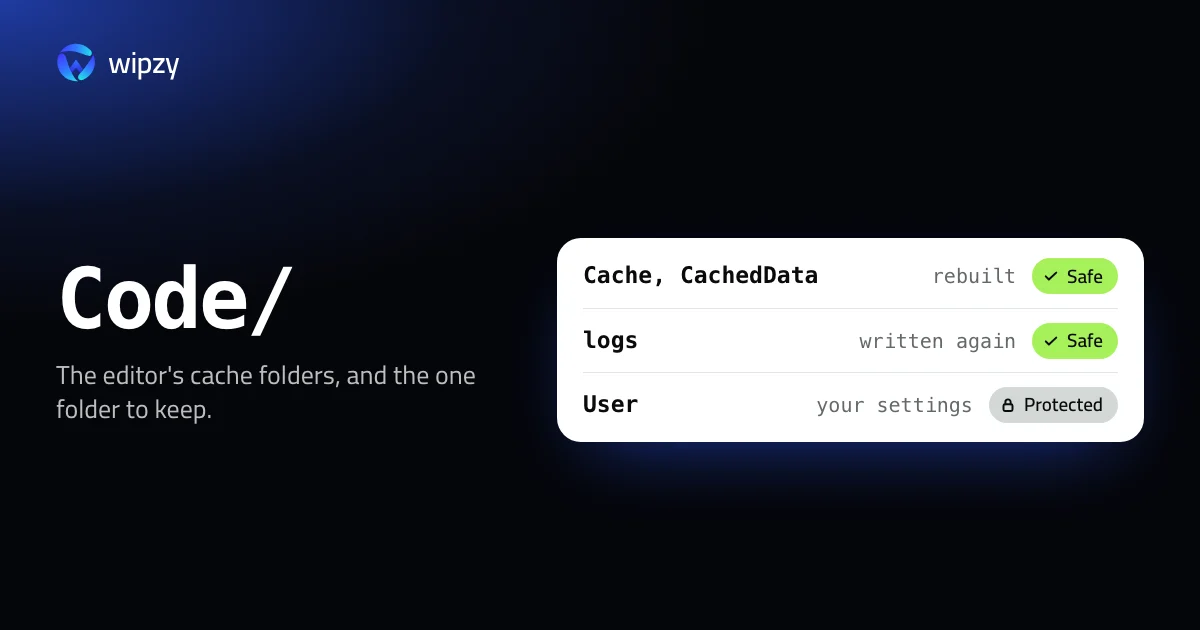
Editors keep two kinds of things next to each other: caches that rebuild, and state that does not. For VS Code, with the app closed, the cache part is this:
cd ~/Library/Application\ Support/Code && du -sh Cache "Code Cache" GPUCache CachedData CachedExtensionVSIXs logs 2>/dev/null
Those six folders can go. The User folder beside them cannot. This guide draws that line for VS Code, its relatives Cursor and Windsurf, and the JetBrains IDEs.
VS Code
Everything is in ~/Library/Application Support/Code. See what is large first:
du -sh ~/Library/Application\ Support/Code/* | sort -hr | head -12
| Folder | What it is | Can it go |
|---|---|---|
Cache, Code Cache, GPUCache, DawnCache |
Browser-engine caches of the app | Yes |
CachedData |
Compiled code, one folder per VS Code version | Yes. Old versions are never removed by VS Code |
CachedExtensionVSIXs |
Downloaded extension packages | Yes |
logs |
Log files per session | Yes |
User/settings.json, keybindings.json, snippets |
Your configuration | No |
User/globalStorage |
State of extensions, including sign-ins | No |
User/workspaceStorage |
Per-project state of extensions | Mostly. See below |
Backups |
Unsaved files kept for the next start | No |
With VS Code closed:
cd ~/Library/Application\ Support/Code && rm -rf Cache "Code Cache" GPUCache CachedData CachedExtensionVSIXs logs
workspaceStorage
This folder has one subfolder per project you ever opened. Extensions put per-project indexes there, and some grow to gigabytes. Projects you deleted long ago still have theirs. Each subfolder has a workspace.json that names its project:
grep -h '"folder"' ~/Library/Application\ Support/Code/User/workspaceStorage/*/workspace.json | sort | head -30
A subfolder whose project no longer exists can be removed. For a project you still use, removing it resets what extensions remembered for that project, such as breakpoints and chat history.
Extensions
~/.vscode/extensions holds every installed extension. code --list-extensions prints them. Uninstalling one you no longer use is the proper way to shrink that folder.
Cursor and Windsurf
Both are built on VS Code and use the same layout in a folder of their own: ~/Library/Application Support/Cursor and ~/Library/Application Support/Windsurf. The same table applies.
JetBrains IDEs
IntelliJ IDEA, PhpStorm, WebStorm, PyCharm and the others separate things more clearly:
| Path | Holds | Can it go |
|---|---|---|
~/Library/Caches/JetBrains/<Product><version> |
Indexes, caches, and Local History | With care |
~/Library/Logs/JetBrains/<Product><version> |
Logs | Yes |
~/Library/Application Support/JetBrains/<Product><version> |
Settings and plugins | No |
du -sh ~/Library/Caches/JetBrains/* | sort -hr
You will likely see folders for versions you no longer have, such as PhpStorm2024.3 beside PhpStorm2026.2. Each IDE version makes a new folder and leaves the old one.
The right tools are inside the IDE:
- File, Invalidate Caches rebuilds the caches and indexes of the current version. Use it when the IDE misbehaves.
- Help, Delete Leftover IDE Directories lists the folders of older versions and removes the ones you pick. Use it for disk space.
If you install IDEs through JetBrains Toolbox, it may also keep the previous version of each IDE for rollback. Its settings have an option to keep only the latest.
When clearing is worth it
- After a major version update, for the folders of the old version.
- When the editor shows stale errors or broken completion.
- For editors you stopped using. Then remove the app too.
Clearing the caches of the editor you use every day gains little. It will have rebuilt them by the end of the week.
Two versions of the same extension
When an extension updates, VS Code downloads the new version next to the old one and removes the old one on a later restart. If the app is rarely restarted, both stay. This prints extensions that are present in more than one version:
ls ~/.vscode/extensions | sed -E 's/-[0-9][0-9.]*(-[a-z0-9-]+)?$//' | sort | uniq -d
If the list is not empty, quit VS Code completely and open it again. It clears the outdated copies itself. There is no need to delete them by hand.
With Wipzy
Wipzy's Apps area, part of Pro, has rules for Visual Studio Code, Cursor and Windsurf. The line it draws is the one in this guide.
In ~/Library/Application Support/Code |
Level |
|---|---|
Cache, Code Cache, GPUCache, DawnCache, CachedExtensionVSIXs, logs |
Safe |
CachedData |
Safe, and the newest version's folder is kept |
Service Worker/CacheStorage |
Your call |
User, Backups, extensions |
Protected |
The row says what stays: "Settings, extensions and history are kept". Update downloads in ~/Library/Caches/com.microsoft.VSCode.ShipIt are included as Safe.
Two conditions apply. The editor has to be closed, because a running editor writes to these folders. And everything is moved, not deleted: Clean puts the folders into a quarantine on the same disk, History has Undo, and the space is freed when you press Free now.
What Wipzy does not offer yet: the JetBrains cache folders. Use Delete Leftover IDE Directories for those. It does find old Android Studio caches, keeping the current version's, and inside projects it offers IntelliJ's out folder as Safe with the note "Rebuild in the IDE".
It is never one click: scan, Review plan, then Clean. See the four risk levels, or the same treatment for other apps in how to clear app caches.
Questions
Is it safe to delete the VS Code Cache folder?
Yes, with VS Code closed. Cache, Code Cache, GPUCache, CachedData and logs are rebuilt on the next start. Do not delete the User folder next to them. It holds your settings and extension state.
What does Invalidate Caches do in a JetBrains IDE?
It deletes the indexes and caches of the IDE and builds them again after a restart. The dialog has a separate checkbox for clearing Local History, which is off by default.
Will clearing caches remove my extensions or plugins?
No. VS Code extensions are in ~/.vscode/extensions and JetBrains plugins are in Application Support. Neither is a cache folder.