Test tools do not use the Chrome you browse with. Each one downloads its own browser builds, pinned to the version of the tool, and keeps them in a cache folder in your home. To see what Playwright has on this machine and remove all of it:
npx playwright install --list
npx playwright uninstall --all
Read on before the second line. It also removes the browsers your current project needs, and there are gentler options.
Playwright
See what is there
du -sh ~/Library/Caches/ms-playwright/* | sort -hr
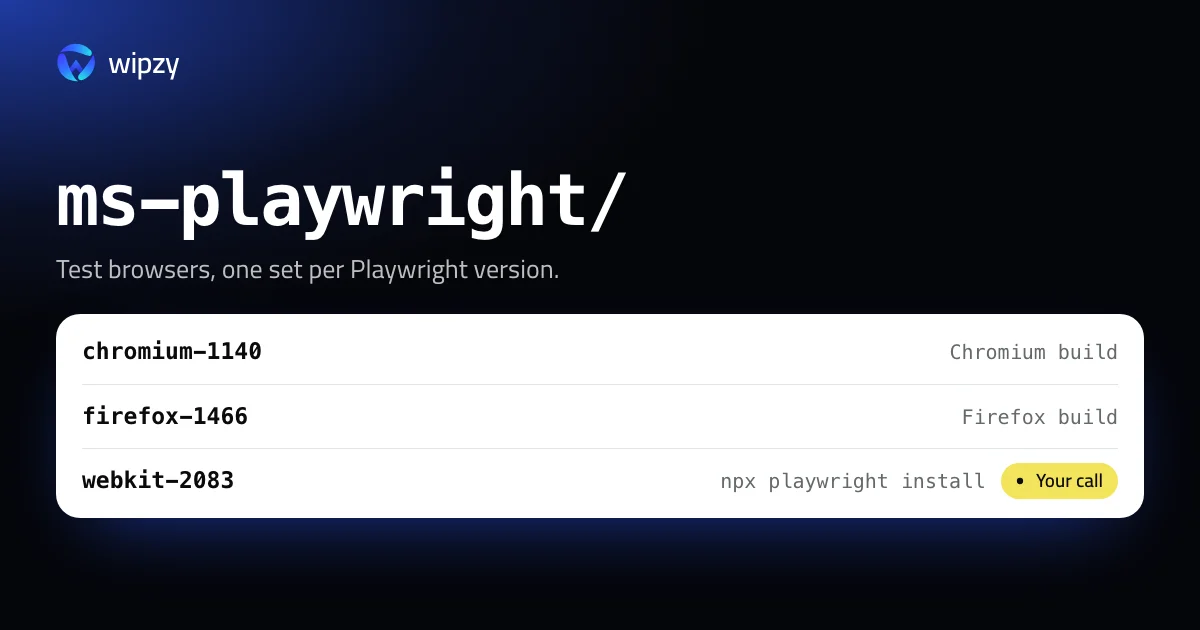
You will see folders such as chromium-1140, firefox-1466 and webkit-2083. The number is the browser build, and each Playwright release pins its own. Three projects on three Playwright versions can mean nine browsers.
npx playwright install --list, run inside a project, prints the browsers of every Playwright installation it knows about on this machine and where each one is.
Remove
| Command | What goes |
|---|---|
npx playwright uninstall |
The browsers of the Playwright version in the current project |
npx playwright uninstall --all |
The browsers of every Playwright installation on the machine |
Playwright also cleans up by itself. Its docs say it will garbage-collect unused browsers when you update to a newer version. That collection runs during npx playwright install, so old builds stay only when no install has run for a while.
Puppeteer
Puppeteer keeps its Chrome builds in ~/.cache/puppeteer, one folder per version:
du -sh ~/.cache/puppeteer/*/* | sort -hr
Every Puppeteer release pins one Chrome version, and upgrading Puppeteer downloads the new one without removing the old one. List the folders and delete the versions that no project of yours pins any more:
ls ~/.cache/puppeteer/chrome
rm -rf ~/.cache/puppeteer/chrome/mac_arm-127.0.6533.88
That version number is an example. Use a folder name from your own listing.
Cypress
Cypress stores one copy of its app per version in ~/Library/Caches/Cypress. It has commands for all of this:
npx cypress cache list
npx cypress cache prune
cache list shows the installed versions. cache prune removes every version except the one the current project uses. npx cypress install brings a version back.
What not to touch
- Your own Chrome, Firefox or Safari. These tools never use them unless you configured a channel such as
chrome, and removing test browsers does not touch them. - A browser path you set yourself. If
PLAYWRIGHT_BROWSERS_PATHis set in your shell or CI config, the browsers are in that folder, not in the default one. With the value0they live inside each project'snode_modules, and they go when the node_modules folder is deleted. - Reports you still need.
test-results/,playwright-report/and Cypressvideos/are output of your last runs. They are safe to delete only once you have read them.
Download less in the first place
A plain npx playwright install fetches Chromium, Firefox and WebKit. If your tests run in one browser, install one:
npx playwright install chromium
Two more ways to keep the folder small:
- Keep projects on the same Playwright version. Browser builds are shared between projects that pin the same version. Five projects on one version need one set of browsers. Five projects on five versions need five.
- Let the garbage collection run. Playwright removes builds that no installation uses when you run an install. If you once set
PLAYWRIGHT_SKIP_BROWSER_GC=1to stop that, old builds are never removed.
In CI the browsers are usually cached between runs, keyed by the Playwright version. That cache has the same problem as your laptop: every version bump adds an entry, and old entries stay until the CI service expires them. On your own machine nothing expires them but you.
One check before any of the removals above: make sure no test run is in progress. A browser that is deleted while a test is using it fails that run with a confusing error about a missing executable.
With Wipzy
Wipzy lists the three caches under Dev caches, in the free plan, each with its size:
| Row | Path | Level | Why |
|---|---|---|---|
| Playwright browsers | ~/Library/Caches/ms-playwright |
Your call | "Test browsers, including the ones you use now" |
| Puppeteer browsers | ~/.cache/puppeteer |
Your call | "Downloaded again on the next install" |
| Cypress binaries | ~/Library/Caches/Cypress |
Safe | "Downloaded again on the next install" |
Playwright and Puppeteer are Your call, not Safe, for an honest reason: the folder holds the builds your current project runs with, and getting them back costs a download. Wipzy lists them and leaves the tick to you.
All three are moved, not deleted. Clean puts the folder into a quarantine on the same disk. If tomorrow's test run complains, open History and press Undo, and the browsers are back without a download. The space is freed when you press Free now.
Inside projects, Wipzy also finds the report folders: test-results, playwright-report, blob-report, and Cypress videos and screenshots. They are Your call too, with the note "Run the tests again".
Nothing is cleaned in one click: scan, Review plan, then Clean. More on the levels in how Wipzy sorts what it finds, and on the other JavaScript caches in the pnpm, Yarn and Bun guide.
Questions
Where does Playwright store its browsers on a Mac?
In ~/Library/Caches/ms-playwright, one folder per browser build, unless PLAYWRIGHT_BROWSERS_PATH points somewhere else.
Does Playwright delete old browsers by itself?
Yes, when you run an install after updating Playwright, it removes builds no installation uses. Builds stay behind when you stop running installs, for example after deleting a project.
Will my tests break after I remove the browsers?
They fail with a message that tells you to run npx playwright install. Run it and they pass again.