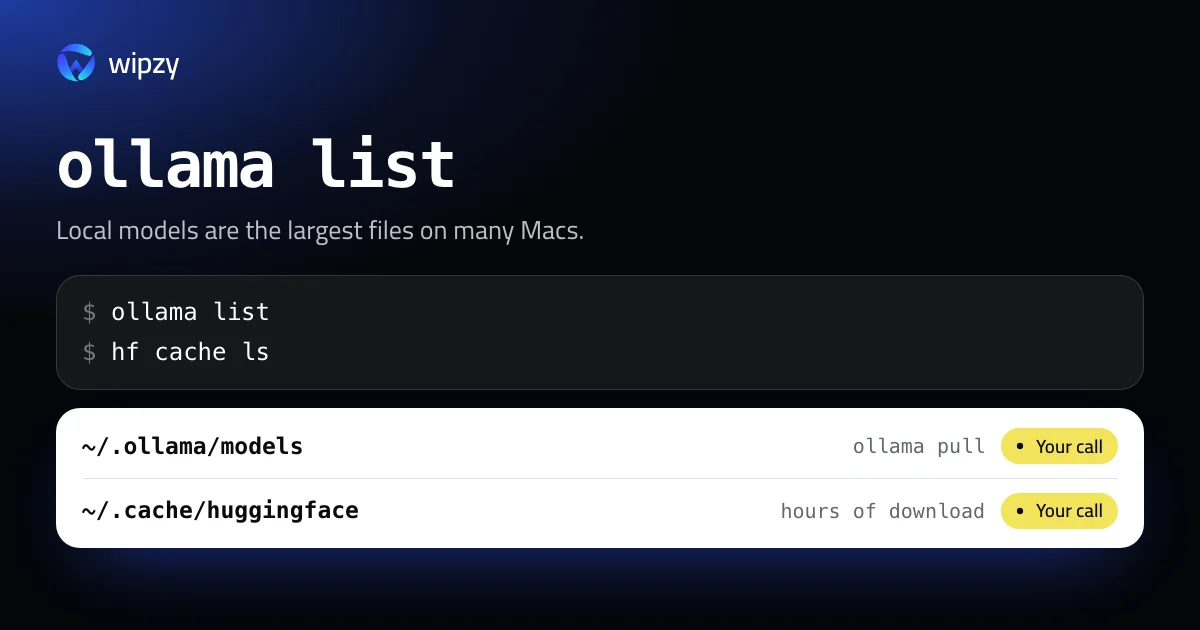
A single local model is often larger than every node_modules folder you own. Two commands show what you have:
ollama list
hf cache ls
Both print each model with its size. Removing one is as short: ollama rm and hf cache rm. What takes thought is which models you can get back, and how long that download will take.
Ollama
ollama list
du -sh ~/.ollama/models
ollama list shows each model with its tag, size and when it was last changed. Remove one by name:
ollama rm llama3.1:70b
Two things to know:
- Models share layers. Ollama stores models as blobs, and two tags of the same family can use the same blob. Removing one model frees only the blobs no other model needs, so the space you get back can be less than the size in the list.
- Do not delete blobs by hand. The files in
~/.ollama/models/blobsare named by checksum and referenced from manifests. Remove a blob directly and the models that use it break.
Hugging Face
Everything that transformers, diffusers or huggingface_hub downloads goes to ~/.cache/huggingface/hub, one folder per repository:
hf cache ls
The list has one line per repository with its size and when it was last accessed. It takes filters, so this shows the large ones you have not touched for a month:
hf cache ls --filter "size>1GB" --filter "accessed>30d"
Remove a repository, with a preview first:
hf cache rm model/bert-base-cased --dry-run
hf cache rm model/bert-base-cased
And remove leftovers that nothing points to: old revisions of models that were updated, and files from downloads that were interrupted:
hf cache prune --dry-run
hf cache prune
hf cache prune is the safe first step. It removes nothing that a current model reference needs.
If hf is not found, your huggingface_hub is older. The same job there is huggingface-cli scan-cache and huggingface-cli delete-cache.
Datasets are separate. The datasets library keeps its processed copies in ~/.cache/huggingface/datasets, and they can be larger than the models:
du -sh ~/.cache/huggingface/*
LM Studio and stray model files
LM Studio keeps models in ~/.lmstudio/models, in older versions in ~/.cache/lm-studio/models. Delete them in the app, under My Models, so that its list stays right.
Other tools put model files wherever you told them to. Find every large model file in your home folder, wherever it is:
find ~ -type f \( -name '*.gguf' -o -name '*.safetensors' -o -name '*.ckpt' \) -size +1G -exec du -h {} + 2>/dev/null | sort -hr
It is common to find the same model three times: once in Ollama, once in the Hugging Face cache, once in a downloads folder.
What to keep
- Models you run every week. The download is not worth the space.
- Anything you made. Fine-tunes, merges, quantized conversions. Move them to an external disk before a cleanup.
- Models that are no longer published. If the repository was removed, your copy is the last one.
The Python side of an AI setup has its own weight. Every virtualenv with PyTorch in it holds gigabytes of libraries. See pip, conda and virtualenvs.
Move them instead of deleting them
If the models are worth keeping and the internal disk is the problem, both tools can keep their store on an external disk.
For Ollama, the folder is set by the OLLAMA_MODELS variable. The Mac app reads its environment from launchctl, so set it there, then quit and reopen Ollama:
launchctl setenv OLLAMA_MODELS /Volumes/External/ollama-models
For Hugging Face, HF_HOME moves the whole cache. Put it in your shell profile:
export HF_HOME=/Volumes/External/huggingface
In both cases, move the existing folder to the new place first, so that nothing has to be downloaded again. LM Studio has the same option in its settings, as the models folder.
The trade is plain: models load more slowly from an external disk, and they are not there when the disk is not plugged in.
With Wipzy
Wipzy lists the three model stores under Dev caches, in the free plan. They are whole-folder rows: Wipzy shows what each store weighs. It does not pick single models.
| Row | Path | Level | Reasons shown |
|---|---|---|---|
| Ollama models | ~/.ollama/models |
Your call | "Downloaded AI models", "Re-download can take a long time" |
| Hugging Face models | ~/.cache/huggingface |
Your call | "Downloaded models and datasets", "Re-download can take hours" |
| LM Studio models | ~/.lmstudio/models |
Your call | "Downloaded AI models", "Re-download can take a long time" |
They are Your call and never ticked for you, for the reasons in this guide: the download is long, and the folder may hold something you made.
For removing one model, ollama rm and hf cache rm are the right tools. The Wipzy row is for the other case: you are done with local models for now and want the whole store out of the way. Because Clean is a move into a quarantine on the same disk, that is not a one-way door. Change your mind the next day, press Undo in History, and the models are back in a moment, with no download. The space is freed only when you press Free now.
It is not one click: scan, Review plan, then Clean. See what Your call means and how to find other large files.
Questions
Where does Ollama store models on a Mac?
In ~/.ollama/models, unless the OLLAMA_MODELS variable points somewhere else. Remove models with ollama rm, not by deleting files there.
How do I clear the Hugging Face cache?
Run hf cache ls to see what is cached, hf cache rm with a repository name to remove one, and hf cache prune to remove old revisions and broken downloads. All three support --dry-run.
Can I get a deleted model back?
A public model, yes, by pulling or downloading it again. A model you fine-tuned or converted yourself exists only on your disk. Back it up before you clean.